Sunday, February 14, 2010

Nintex Context menu doesn't appear in IE8

Once we have configured the Nintex workflow 2007 in our development server, I was unable to see the context menu which should appear in the Nintex workflow controls.

so the reason was when the IEs Enhanced Security Configuration (ESC) settings are turned on then have to add the about:blank to the trusted site list.

Tuesday, January 26, 2010

Uploading a InfoPath form which is an Administrator Approved Template for SharePoint 2007

As i described in my previous post once we finished saving a InfoPath form which prompted us “Administrator must approve this form template before it can be filled out by using a browse” at the time when we followed the normal usual way to publish a InfoPath form in SharePoint library, as the next step we have to upload this template to the SharePoint via Central Administration.

Browse to the Central Administration home page and go to Application Management, Under InfoPath Form Services Click on Upload Form Template.

image

Find the location of the template and browse to it. (If you saved it to SharePoint you'll need to save a local copy on your computer and upload from there.)

image

to be continued…

An Administrator must approve this form template before it can be filled out by using a browser.

Currently i was working with InfoPath forms for me to design some form templates and later which will be published in SharePoint to enable nintex workflow. Most of time we were used to develop InfoPath forms which is compatible with browser. In other words browser compatible InfoPath forms.

I came across a situation where we need to get the current IP address of the logged in user to the InfoPath form. So at that time i had to write some C# codes in InfoPath form. Upon finished with the codes when i tried to publish the form, mid of the publishing wizard it didn't allow me to publish the InfoPath template directly to the SharePoint library, instead it forced me save it in locally informing “Administrator must approve this form template before it can be filled out by using a browser”.

image

the reason was :

This behavior occurs because a Microsoft Visual Studio 2005 Tools for the Microsoft Office System form contains managed code by default.

Note: If a form template contains managed code, the Publishing Wizard lets you click only the Administrator-approved form template (advanced) option.

the only way in this situation is to save the InfoPath template locally and to upload the same template via the Central Administration.

Friday, January 15, 2010

Error creating package - Failed to save package file “\path” with error 0x80040154 "Class not registered"

When I tried to create a new SSIS package in the BIDS, I received an error saying : “Failed to save package file “\path of the file" with error 0x80040154 "Class not registered".

It was due to MSXML6 setup package did not get installed in my machine properly or due to some reason it should have corrupted. So you have 'MSXML 6.0 Parser' in Add/Remove Programs, click Change and then Repair. If it does not exist in your Add/Remove Programs - rerun the SQL Setup, then it should install it.

Wednesday, January 13, 2010

Adding SQL Server Reporting Services Report Viewer Web Part - SharePoint

Once i have installed the Reporting Services add in for the SharePoint by default the SQL Server Reporting Services Report Viewer web part should be enabled in SharePoint web part library. But in my case it was not added and listed in the library. So i had to add it manually.

follow the steps as below:

clip_image002

clip_image004

clip_image006

clip_image008

clip_image010

After adding the web part to your page just configure the same to view your report.

clip_image012

you can download the addin from the following link:

http://www.microsoft.com/downloads/details.aspx?familyid=1E53F882-0C16-4847-B331-132274AE8C84&displaylang=en

Tuesday, January 05, 2010

Biztalk Poster

Biztalk poster (Silverlight enabled) -

Check this out :

http://www.microsoft.com/biztalk/capabilities/reader/ .

Scroll/Zoom + click on a section where the help and various MSDN articles come up. really helpful for us. :)

Monday, December 07, 2009

This operation has been cancelled due to restrictions in effect on this computer. Please contact your system administrator.

To resolve above mentioned error while opening any of hyperlinks in Ms Excel, Outlook, etc just follow this step :

For Windows XP (Service Pack 1 and higher)

* Click Start, Control Panel, double-click Add or Remove Programs
* Click Set Program Access and Defaults
* Click Custom
* Under Choose a default Web browser, select Internet Explorer
* Click OK

For Windows Vista

* Click Start, and click Default Programs
* Click Set program access and computer defaults
* Click Custom, select Internet Explorer and click OK
* Close and re-open Microsoft Outlook

Thursday, December 03, 2009

Service Unavailable and SharePoint Error: Some or all identity references could not be translated

Currently i was working with some BizTalk test projects using a Virtual Machine installed with Windows 2003. I have installed BizTalk 2006 in the same machine in which i was doing some SharePoint projects. For me to install BizTalk 2006 i had to install DNS and the Active Directory. Prior to installing this BizTalk, SharePoint was working fine without giving me any headache.

After installing BizTalk it started to give me problems when i tried to access the SharePoint Central Administration. It prompted me for Service Unavailable error, Grr rrrr (at that time i was thinking if i need to redo these things again such as installing windows 2003 in a new virtual machine, after that installing DNS, installing Active Directory, installing MOSS 2009 and installing BizTalk 2009 - it will waste my time for sure).

So i know it was due to the installation of the Active Directory and i had to reset the permission in Application Pools in IIS (go to IIS, browse Application Pools and select your Application => right click and go to properties => from there select the Identity Tab and change the User Name and accordingly change the password.

image

Once its over when i tried to browse for SharePoint sites another error was prompting me saying “Some or all identity references could not be translated” (Hard Luck). So i was searching to resolve this problem. so Finally the utility STSADM was there to help us. You can find this tool under C:\Program Files\Common Files\Microsoft Shared\web server extensions\12\BIN and just execute this command by replacing the proper login with the domain name followed by the password.

"stsadm.exe -o updatefarmcredentials -userlogin domainname\username –password yourpassword "

image

Once you executed the above command please make sure to do iisreset –noforce

Hurray!!! now everything works fine without any hassle. Hassle free of life.

Make sure to re-run the SharePoint Products and Technologies wizard once the above said steps are finished.

image

guys for more information please refer this URLs:

http://www.neilrichards.net/blog/?p=73

http://coolsubhash-tech.blogspot.com/2007/05/some-or-all-identity-references-could.html

http://www.keirgordon.com/post/SharePoint-Server-Error-Some-or-all-identity-references-could-not-be-translated.aspx

Failed to add resource(s). Resource () is already in store and is either associated with another application or with another type

image

when i was working with biztalk orchestration, there was an error prompted at the time when i did the deployment : “

Error 1 Failed to add resource(s). Resource (-Type="System.BizTalk:BizTalkAssembly" -Luid="BizTalkServerTestProjectAmmar, Version=1.0.0.0, Culture=neutral, PublicKeyToken=dda761d103beeac0") is already in store and is either associated with another application or with another type. 0 0 “

I thought we should just deploy the way that we are doing with other applications. But when researched about this if we didn't specify any value for the Application Name in the Deployment properties page, then VS used to deploy the orchestration in BizTalk Server named with BizTalk Application 1.

image

To overcome the above said error i had to remove the resource file located under Resources folder as below:

image

once its done, the orchestration was deployed in the BizTalk Server successfully. :)

To avoid this in future, set explicitly deployment target application in the Visual Studio project properties by: right click - Configuration properties - Deployment - Application Name.

Monday, November 23, 2009

Microsoft Biz Talk Server 2009

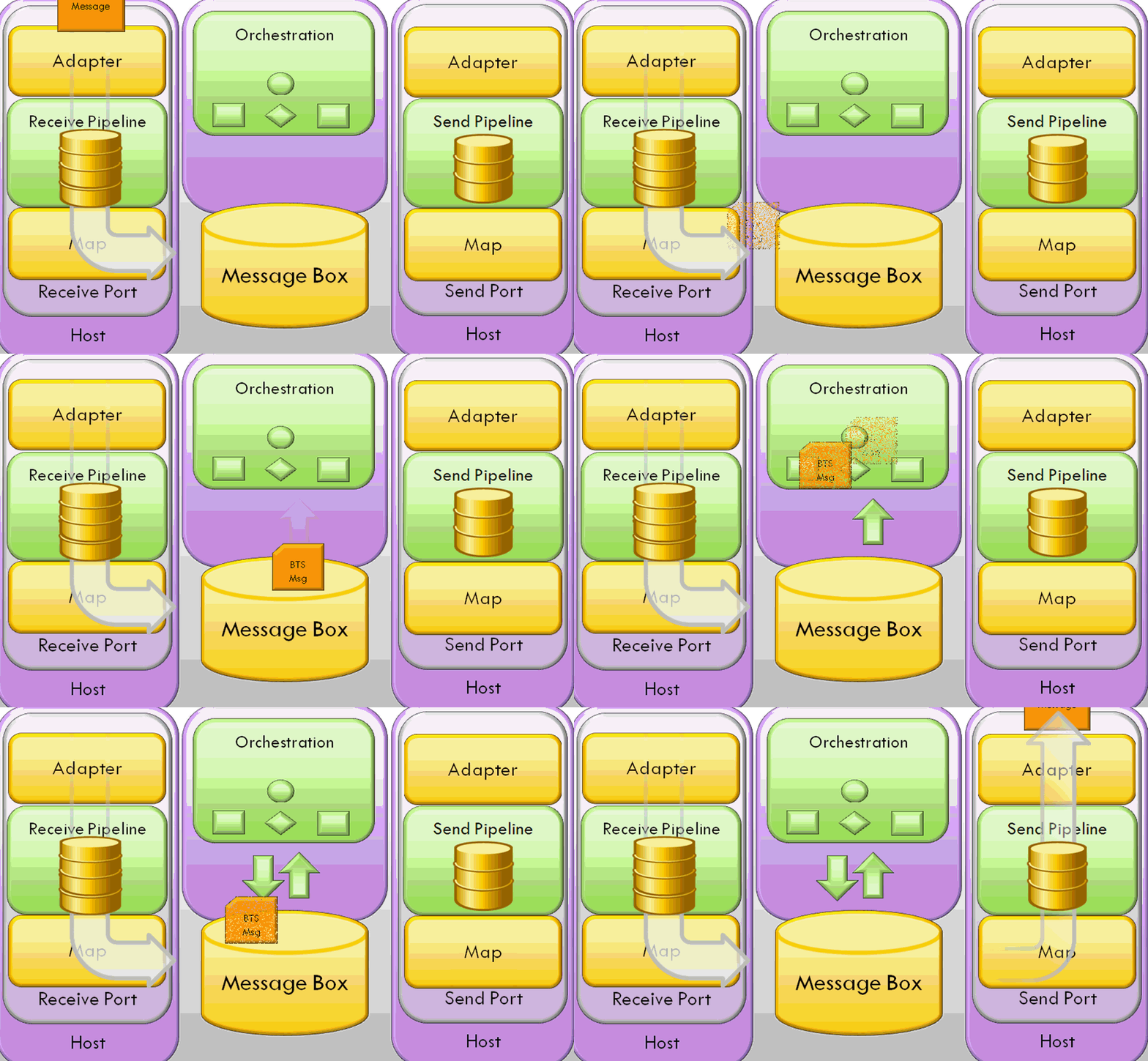
Simply we can say the BizTalk is a Messaging Based Integration Tool and uses XML as the common data exchange language for eCommerce and application integration in the WWW. 

In other words we can say that BizTalk is the main interface in between multiple systems and based on some definitions we can say as "BizTalk Server is Microsoft's central platform for Enterprise Application Integration (EAI) and Business Process Management (BPM) and embodies the integration and automation capabilities of XML and Web Services technologies. BizTalk Server functions as a process execution engine and as a multi-transport hub for messaging and document transformations. It is a Windows Server System product that helps customers efficiently and effectively integrate systems, employees and trading partners".

Biz2009 BizTalk_bt_1

you can understand what is happening inside BizTalk by viewing the following animated jpeg file :

 get_image.php

if you can’t view the animation please do not hesitate to click this link:http://farm3.static.flickr.com/2718/4127256189_0da73842e3_o.gif

Monday, November 09, 2009

Cannot implicitly convert type 'System.DBNull' to 'int'

There will be situations where you have to set null values to an Integer field. So when you tried to assign a DBNull.Value to an integer varialbe you will prompt for the error : "Cannot implicitly convert type 'System.DBNull' to 'int' ".

to resolve this matter, let it be as its in the interface level, but at the time of passing the parameter to the Database just make it DBNull.Value.

'With your command object

1: myCmd.Parameters.Add("@myParameter",SQLDBType.INT).Value = IIf(myTextBox.Text <> "", myTextBox.Text, DBNull.Value)

another code snippet :
  1. if (Employee.EmployeeManagerID == 0) { AddParameter("@EmployeeManagerID", DBNull.Value, DbType.Int32, null, ParameterDirection.Input); } else AddParameter("@Manager",Employee.EmployeeManagerID, DbType.Int32, null, ParameterDirection.Input);

Microsoft JScript runtime error: 'Sys' is undefined

After some time back was working in a Development project and was came across an error :

Microsoft JScript runtime error: 'Sys' is undefined,

as i went on hunting for the solution for this there are so many answers i was able to find. But the error which was triggerd in my application was due to not specifying httphandlers and httpmodules handlers in web.conf file.

I will try to post the code later as for the moment i couldn't post html stuffs in blogger.

Friday, September 25, 2009

Contacts temporarily unavailable in Google Talk and GMAIL

Seems Google having problem loading Contacts in both the Gmail and Google Talk. Googles' response to this problem :

Contacts temporarily unavailable

Your contact list is temporarily unavailable, which may result in a few issues:

  • Auto-complete may not work
  • The contact manager may not load
  • Chat may not work
We're working to fix the problem, and in the meantime, you should be able to continue to read and send mail as normal. Thank you for your patience.

Thursday, April 16, 2009

SharePoint consistently prompting for user credentials

When SharePoint bugs you to enter user name and password again and again at the time of login then you can solve it by following the step described below :

  • In IE, go to 'Tools'
  • Click on 'Internet Options'
  • Open 'Security' tab
  • Click on 'Custom level'
  • Scroll down and select 'Automatic logon with current username and password'
  • Click ok

Wednesday, April 15, 2009

Internet Explorer 8

A new version of the IE was released in early March 2009. So the new features of the IE 8 are :

  • Accelerators
  • Enhanced Navigation
  • Increased Performance
  • Improved Favorites and History Management
  • Instant Search
  • Web Slices

for more details refer : http://www.microsoft.com/windows/internet-explorer/features/overview.aspx?tabid=1&catid=1

you can download the IE 8 from here : http://www.microsoft.com/windows/internet-explorer/default.aspx

refer this article also : Duplicate IE 8 Features in Firefox 3

Tuesday, April 07, 2009

SharePoint Designer Offered as Free

Microsoft has announced informing that share point designer now available as a free tool. you can download it from here.

as well as Microsoft plans to ship the next version of SharePoint Designer with the next SharePoint release called “SharePoint 14”

Sunday, April 05, 2009

Arabic Language Pack for MOSS 2007

before installing the Arabic Language pack make sure that you have installed the Microsoft Office Project Server 2007. Once its done as the next step double check whether is that your Windows 2003 Arabic language support. If not follow the steps :

Install additional language files :

  1. Click Start, point to Settings and then Control Panel, and then click Regional and Language Options.

  2. In the Regional and Language Options dialog box, on the Languages tab, in the Supplemental Language Support section, select one or both of the following checkboxes:

    • Install files for complex script and right-to-left languages

    • Install files for East Asian languages

  3. Click OK in the dialog box that alerts you that additional disk space is required for the files.

  4. Click OK to install the additional language files.

  5. When prompted, insert your Windows Server 2003 product disc or provide the location of your Windows Server 2003 installation files.

  6. When prompted to restart your computer, click Yes.

you can download the Arabic Language pack for MOSS 2007 from this link :

http://www.microsoft.com/downloads/details.aspx?displaylang=ar&FamilyID=2447426b-8689-4768-bff0-cbb511599a45

for other languages you can find details from this link : http://www.microsoft.com/downloads/details.aspx?FamilyId=3A6C26FD-0BEB-40D5-8CBA-15164FAAB150&displaylang=en

you can read about the way to install the Arabic Language pack in Windows 2008 server from here : Installing Arabic Language Pack for MOSS 2007 over Windows Server 2008

clip_image002

clip_image004

http://gmail.google.com

I used to check my gmails typing http://gmail.google.com, but today when i access the gmail in the same manner a strange message used to appear. it says something like this :

“We can't provide service under the Gmail name in Germany; we're called Google Mail here instead.

If you're traveling in Germany, you can access your mail at http://mail.google.com.

Oh, and we'd like to link the URL above, but we're not allowed to do that either. Bummer.

For general information about Google, please visit www.google.com or www.google.de.”

really what is it? :)

image

by the way i was able to access the gmail through google.

Thursday, April 02, 2009

Installing Dotnetnuke 4.9.2

I would like to give you a brief introduction to the way to install DotNetNuke_Community_04.09.02 in a Windows XP PC with SQL Server 2005 Enterprise Edition.

you can download all the dotnetnuke resources from http://www.dotnetnuke.com/tabid/125/default.aspx, but to access that page you have to register with dotnetnuke.

you can find following modules to be downloaded from the URL mentioned above :

DotNetNuke 4.9.2 Install : this package is used to install dotnetnuke in your machine.
DotNetNuke 4.9.2 Upgrade – is used to upgrade any dotnetnuke versions than the current version.
DotNetNuke 4.9.2 Source – full dotnetnuke code is available here.
DotNetNuke 4.9.2 Starter Kit – Dotnetnuke Started kits for developers.
DotNetNuke 4.9.2 Docs – Documents with related to everything from installation to administration, etc you can find it here.

download the DotNetNuke 4.9.2 Install file and extract it into your C: drive. Make sure to give a meaningful name to the extracted folder (ex: Dotnetnuke, DNN). Once its done you have to create a virtual directory in IIS.

right click the Dotneunuke folder and enable the web sharing and give ASPNET, NETWOK SERVICE accounts FULL CONTROL as depicted in following screen shots.

image

image

As well as from the database end i will create a empty database named Dotnetnuke in SQL Server 2005. In this situation i will use the default SQL Server 2005 admin user name and password to access the database.

else you can create totally different user logins to access the database. for that you have to follow these steps :

Creating a login for your database:

  • Expand the Security node of your server.
  • Right-click on Logins.
  • Select “New Login”
  • Enter your desired login name. You must remember this login name (dnnuser) and password as this will be used in a later stage.
  • Select “SQL Server Authentication” and enter a password.
  • Uncheck the “Enforce Password expiration/User must change password at next login”
  • Click “User Mapping”
  • Select the database that we have created at the initial stage.
  • make sure to select db_owner in the bottom list “Database role membership for: “
  • Click OK

to make sure that steps that you have followed above is correct, just expand the Security node under your database (Dotnetnuke) and you will see a newly created database user (dnnuser) listed, meaning we also created a new database user by mapping our SQL Server login to our newly created database.

Once its done you have almost completed the installation steps but there are some few steps to go ahead. Just access your dotnetnuke site by typing http://localhost/dotnetnuke in your browser. So you can see the page as depicted below :

clip_image002[4]

clip_image004

clip_image006

clip_image008

clip_image008[1]

i have used my admin credentials to login to dotnetnuke database. Else you can enter the user names and passwords that you have created above (dnnuser credentials).

clip_image010

clip_image012

creating accounts for HOST and ADMIN logins to the dotnetnuke website :

clip_image014

clip_image016

clip_image018

clip_image020

clip_image022

Hurrah!!! finally its done and your dotnetnuke website looks like below :

clip_image024

Note:

apart from the steps as described above at the time of creating the virtual directory, please make sure the anonymous access is allowed for the created virtual directory. to allow the said permission please follow the steps as described below:

Already the virtual directory is in place and have to modify its properties.

  • Open IIS and expand the tree to see “Default Web Site”. (You can find IIS in Start | Control Panel | Administrative Tools.)
  • Expand the "Default Web Site" node.
  • right click the virtual directory name that you have created (Dotnetnuke) and select properties.
  • Click on the "Documents" tab
  • An entry for “default.aspx” needs to be added. Add default.aspx and move it to the top of the default documents list.
  • Click on the "Directory Security" tab
  • In the “Anonymous access and authentication control” group box, click "Edit"
  • Make sure that “Anonymous Access” is checked as well as “Integrated Windows authentication”
  • Next, click on the "ASP.NET" tab and make sure that “2.0.50727” is select for the ASP.NET version
  • Click OK to save your changes

you can read my article in codeproject.

Wednesday, March 18, 2009

Flash Movie overlaps the DNN Menu

When you inserted a flash movie in a Dotnetnuke Text/HTML content pane, the menu used to hidden on top of that inserted flash object. for that you have to add a parameter <param name="”wmode”" value="”transparent”" /> in code behind and insert the wmode="transparent" entry in the embed tag as below :

<p><param name="”wmode”" value="”transparent”" />
<embed menu="false" loop="true" play="true"
type="application/x-shockwave-flash" width="636"
src="/DNNSite/Portals/0/SafatImages/safat_a.swf"
wmode="transparent"
pluginspage="http://www.macromedia.com/go/getflashplayer"
style="width: 636px; height: 133px">
</embed></p>
finally the page should look like this :

image002